Streamstead Documentation!
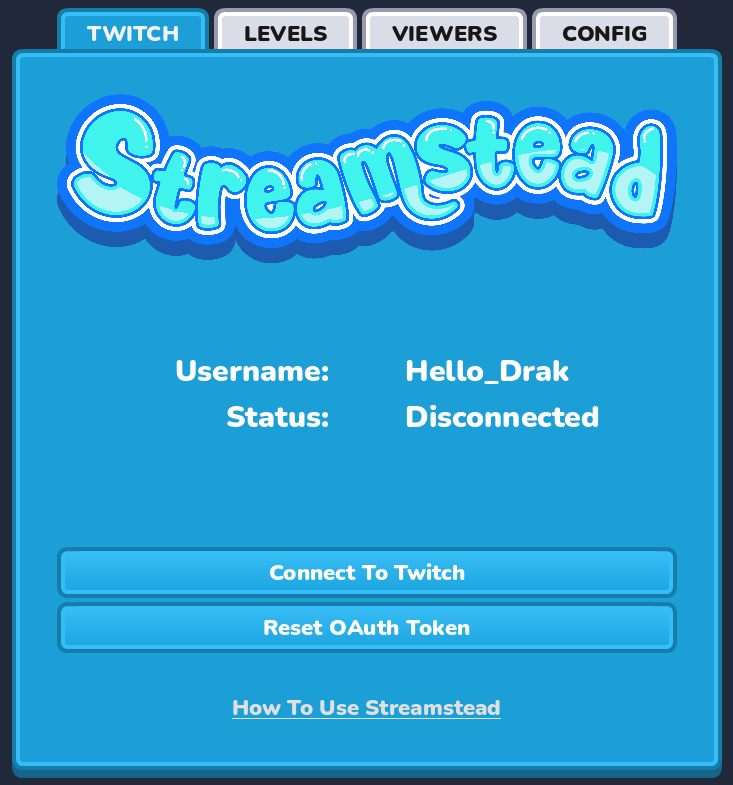
Connect To Twitch
- This will establish a connection between Streamstead and your Twitch account ( if Streamstead is not already connected to your Twitch – you will receive a Twitch screen asking you to authenticate)
- Streamstead will then connect to your stream and display a “Streamstead Connected!” message in your chat.
Reset OAuth Token
- If there are any issues with you connecting Streamstead to Twitch, this button will reset all of the authentication tokens for you. Think of this as a clean slate!
- Please press this button if you are facing any problems with connecting to Streamstead
Unable To Connect?
To perform a full Streamstead Twitch reset:
- Remove Streamstead in your Twitch -> Settings -> Connections list
- Open Streamstead and press Reset OAuth Token
- Press Connect To Twitch again!
Levels
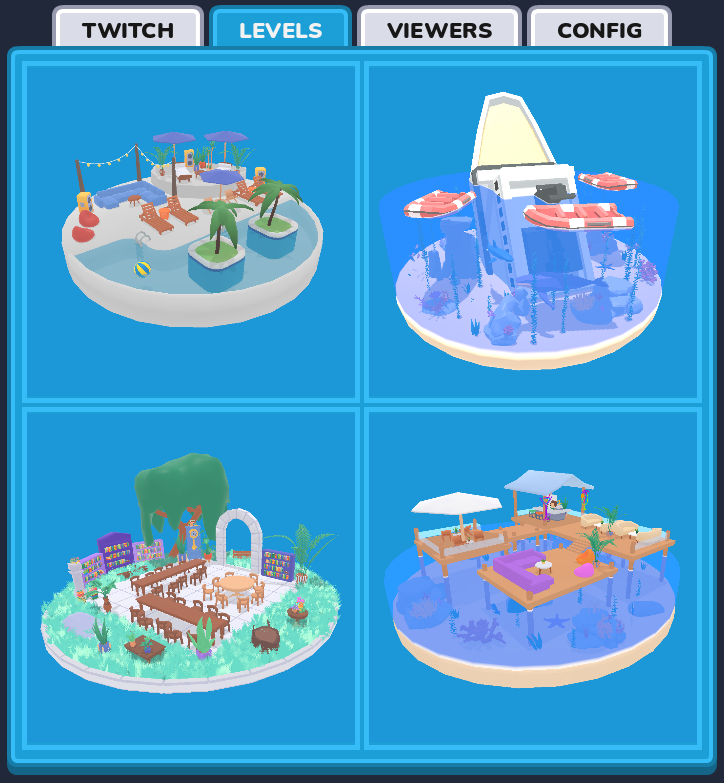
- Selecting a level will open a new window with the environment for you to resize/orient for your OBS/Twitch scene
- Hovering over each level will show you the player capacity for the level!
- Please make sure you have a level open before asking players to join the lobby
Level Controls
Streamstead has two camera modes – Rotate and Free.
In Rotate mode you can zoom in and out of the level and rotate around it. In Rotate mode:
- Scroll Wheel – ZOOM IN/ZOOMOUT
- Scroll Wheel Button – ROTATE
In Free mode you can fly around the level and position the camera anywhere you would like. In Free mode:
- HOLD Right Mouse Button + W/A/S/D – FLY
- HOLD Shift – INCREASE FLY SPEED
Viewers
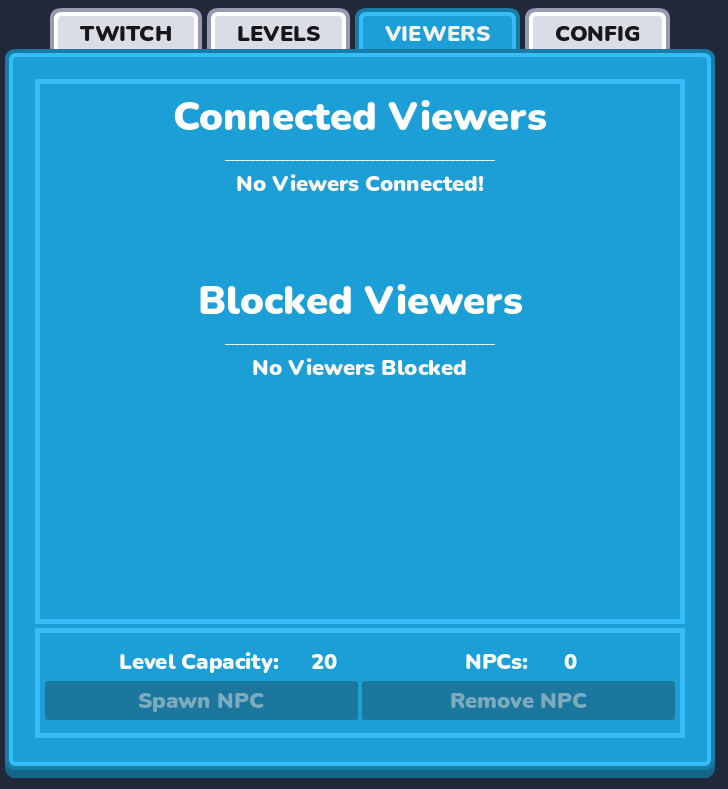
- Here you will see all of the connected (and blocked) viewers in your Streamstead lobby!
- You can Ban, Kick, and Locate each player.
- You can also Unban players.
Create/Remove NPCs
- If for any reason you would like random NPCs in your Streamstead level, you can press the Spawn NPC button! This will create a randomized NPC and add them to your game. It will count towards your level capacity so if you would like to remove an NPC you can just press the Remove NPC button!
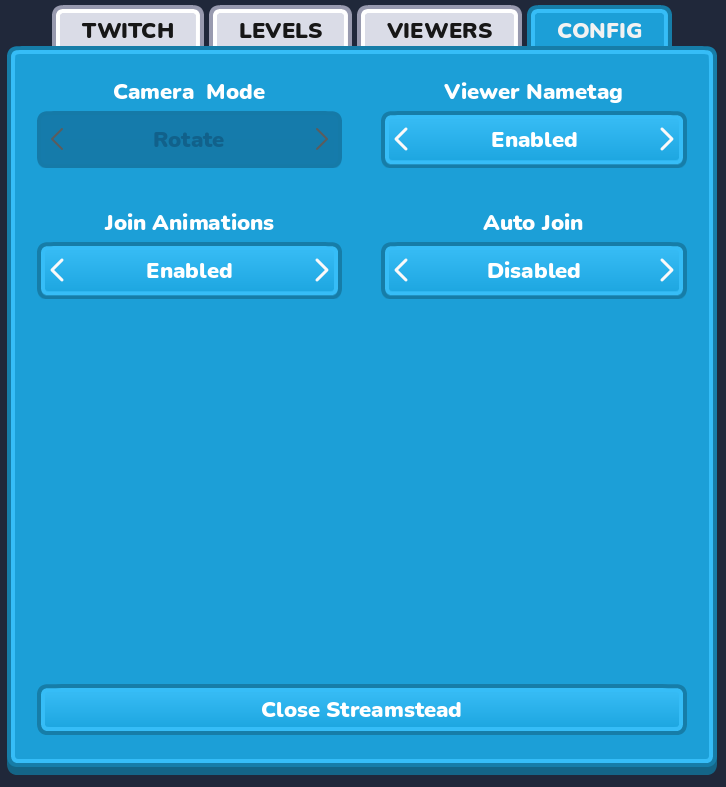
Config
- Camera Mode
- Swap between Rotate and Free (Fly) camera modes
- Viewer Nametag
- Hide or Show viewers names above their heads
- Join Animations
- Hide or Show animation when a viewer joins your Streamstead level
- Auto Join
- Enable – Any chat message will cause a viewer to join your lobby
- Disable – Viewers must enter the correct command (!hello) to join your Streamstead lobby
All Done?
Press the Close Streamstead button to close the app! I hope you had fun with Streamstead!
How To Join A Streamstead Lobby
-
Type
!helloin stream chat - That’s it! You’ll join the world with a random character!
Want a custom character? Click here!
How To Join A Streamstead Lobby with a Custom Character!
- Open the Character Creator
- Design your character
- Click “Generate Code” and copy the code on screen
-
In Twitch chat type
!hello <YOURCODE>(Example:!hello FHDw4S2G1XzMuMAg) - Your custom character will appear in the game!
How To Leave A Streamstead Lobby!
-
Type
!goodbyein stream chat and that’s it! - Your character will go POOF and disappear